Workspace & support
Invite your team and manage access
Add members and control the actions each role can perform.
Open in MilkSageInvite someone
- Open Settings → Team with a role allowed to invite members.
- Enter the Invite email and choose Admin, Manager, or Worker.
- Choose Send invite. Copy the Invitation link shown and share it with the intended person.
- Ask the person to open the invitation and join the farm using the appropriate account.
- Review Members to confirm membership, role, and status.
Set permissions
- Open Settings → Permissions to review role permissions.
- Choose the capabilities needed for each role and save the supported changes.
- Return to Team to maintain membership roles and active status.
- If a member cannot perform a task, check both their membership and the relevant role capability.
Before you continue
Owner access cannot be reduced through role permissions. Read access does not automatically include permission to create, correct, reverse, or export records.
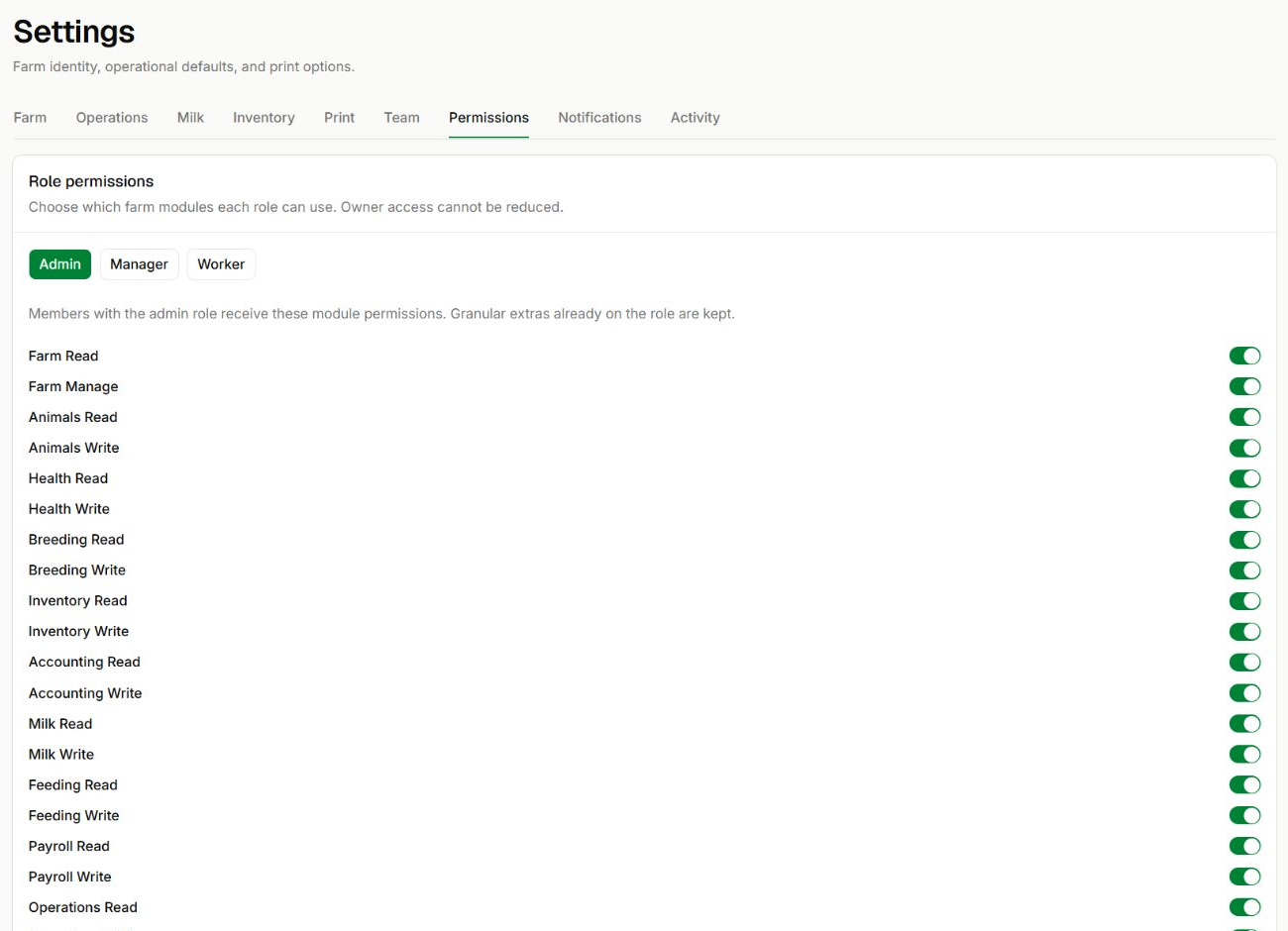
Review the selected role
Settings → Permissions · Admin role
- Select Admin, Manager, or Worker before reviewing switches.
- Read and Write are separate capabilities. The screenshot shows existing settings, not recommended permissions for every team.
- Review all relevant permissions before saving a change. Owner access cannot be reduced here.
Related guides
Set up your farm
Create your workspace and put the essentials in place before recording the day’s work.
Adjust farm settings and notifications
Maintain operational defaults, document details, notifications, and the audit log.
Resolve common problems
Check farm context, access, dates, and record state before retrying an operation.